VBA
While I give you all the VBA in case you want to customize or learn,
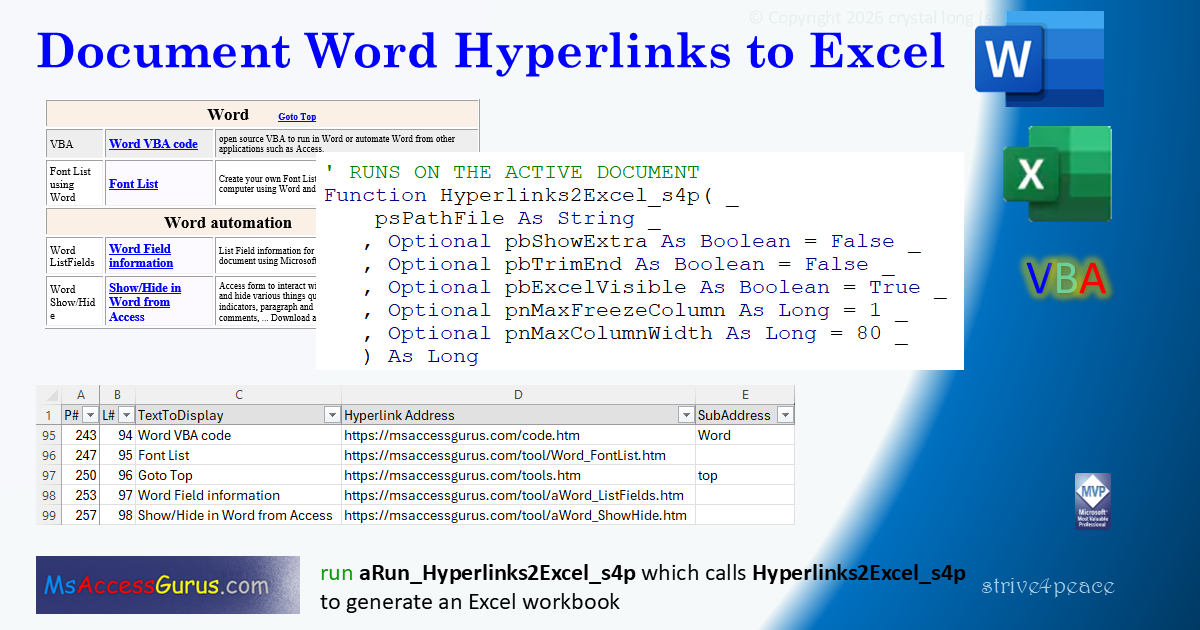
you can just run
aRun_Hyperlinks2Excel_s4p
without changing anything.
module: mod_Word_Hyperlinks2Excel_s4p
Option Compare Text  'Word
Option Explicit
'260329
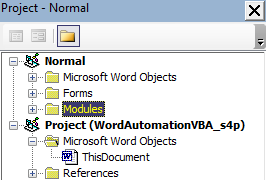
' import this code into Normal.dotm to run on all documents
'
'*************** Code Start *****************************************************
' module name: mod_Word_Hyperlinks2Excel_s4p
'-------------------------------------------------------------------------------
' Purpose  : VBA to create an Excel workbook on desktop in strive4peace folder
'              with hyperlink information
'              and, optionally, all paragraphs
'            look at application Status Bar in lower left to see progress
' Author   : crystal (strive4peace)
' Code List: https://msaccessgurus.com/code.htm
' This code: https://msaccessgurus.com/tool/Word_Hyperlinks2Excel.htm
' LICENSE  :
'   You may freely use and share this code, but not sell it.
'   Keep attribution. Mark your changes. Use at your own risk.
'-------------------------------------------------------------------------------
'
'  THIS RUNS ON THE ACTIVE DOCUMENT
'
'     aRun_Hyperlinks2Excel_s4p -- customize if desired and Run
'
'     Hyperlinks2Excel_s4p
'     GetColumnLetter
'     GetDesktopPath
'
'     WriteAscii_s4p for developer testing
'
'-------------------------------------------------------------------------------
'                       aRun_Hyperlinks2Excel_s4p
'-------------------------------------------------------------------------------
Public Sub aRun_Hyperlinks2Excel_s4p()
's4p 250916, 260323...28

   '  CLICK HERE
   '  Press F5 to Run

   ' CALLs
   '  GetDesktopPath
   '  Hyperlinks2Excel_s4p

   Dim sFilename As String
   Dim sPath As String
   Dim sPathFile As String
   Dim sMsg As String
   Dim nNumLinks As Long

   Dim bShowExtra As Boolean
   Dim bExcelVisible As Boolean
   Dim bTrimEnd As Boolean
   Dim iPos As Integer
   '-------------------------------------- customize
   ' FALSE to document hyperlinks only
   ' TRUE if you need context of other paragraphs
   '      to understand the links
   bShowExtra = False
   'strip extra space and line breaks at end
   bTrimEnd = False  'True to do it
   bExcelVisible = True  ' True to watch Excel
   '--------------------------------------
   sFilename = ActiveDocument.Name
   iPos = InStrRev(sFilename, ".")
   If iPos > 0 Then
      'strip Word extension
      sFilename = Left(sFilename _
         ,iPos - 1)
   End If

   sFilename =  "Hyperlinks" _
      & IIf(bShowExtra, "Extra", "") &  "_" _
      & sFilename

   'add datetime and Excel extension
   sFilename = sFilename _
      & Format(Now, "_yymmdd_hhnnss") _
      &  ".xlsx"

   '------------------ Path
   'put file on desktop in strive4peace folder
   sPath = GetDesktopPath(True) &  "strive4peace\"
   If Dir(sPath,vbDirectory) = vbNullString Then
      MkDir sPath
      DoEvents
   End If

   sPathFile = sPath & sFilename

   nNumLinks = Hyperlinks2Excel_s4p(sPathFile _
      ,bShowExtra _
      ,bTrimEnd _
      ,bExcelVisible _
      )

   'open folder
   If nNumLinks > 0 Then
      sMsg =  "Done writing to Excel " _
         & vbCrLf _
         & sPathFile _
         & vbCrLf & vbCrLf &  "Open folder?"
      If MsgBox(sMsg,vbYesNo, "Done") = vbYes _
      Then
         Call Shell( "Explorer.exe " & sPath,vbNormalFocus)
      End If
   End If

End Sub

'-------------------------------------------------------------------------------
'                       Hyperlinks2Excel_s4p
'-------------------------------------------------------------------------------
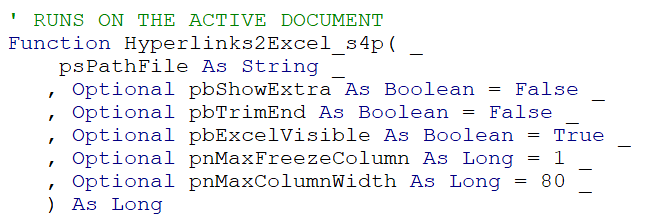
' RUNS ON THE ACTIVE DOCUMENT
Function Hyperlinks2Excel_s4p( _
    psPathFile As String _
   ,Optional pbShowExtra As Boolean = False _
   ,Optional pbTrimEnd As Boolean = False _
   ,Optional pbExcelVisible As Boolean = True _
   ,Optional pnMaxFreezeColumn As Long = 1 _
   ,Optional pnMaxColumnWidth As Long = 80 _
   ) As Long
'250817 s4p ... 260324
   'PARAMETERS
   '  psPathFile = path and filename of Excel file
   '  pbShowExtra = false (default) to document only hyperlinks
   '                true to show all paragraphs
   '  pbTrimEnd = true to strip extra space and breaks from end
   '  pbExcelVisible = true to watch Excel as it runs
   '  pnMaxFreezeColumn = max column number to freeze
   '  pnMaxColumnWidth. If column is wider, wrap text. Ignore if =0

   'CALLs
   '  GetColumnLetter -- get column letter from column number
   '                 for PrintTitleColumns

   On Error GoTo Proc_Err

   Dim oDoc As Document _
      ,oPara As Paragraph _
      ,oHyp As Hyperlink

   ' early binding to develop
   ' Microsoft Excel 16.0 Object Library
'   Dim oAppExcel As Excel.Application _
      , oWb As Excel.Workbook _
      , oWs As Excel.Worksheet

   ' late binding to run
   Dim oAppExcel As Object _
      , oWb As Object _
      , oWs As Object

   Dim sName As String _
      , sText As String _
      , i As Long _
      , nNumLinks As Long _
      , nPara As Long _
      , nLink As Long _
      , nCol As Long _
      , nCol2 As Long _
      , nRow As Long _
      , nRow2 As Long

   'initialize return value
   Hyperlinks2Excel_s4p = 0

   '--- get information
   Set oDoc = ActiveDocument

   '------------------------ oDoc
   With oDoc
      sName = .Name
      ' ~~~~~~~~~~~~~~~~~~~~~~~~~~~~~ make sure there is data
      nNumLinks = .Range.Hyperlinks.Count
      If Not nNumLinks > 0 Then
         MsgBox  "Document has no hyperlinks" _
            ,, "No links to document"
         GoTo Proc_Exit
      End If
   End With  'oDoc

   'turn on Status Bar
   Application.DisplayStatusBar = True
   Application.StatusBar =  "Creating Excel workbook for hyperlinks"

   '------------------------ Excel
   Set oAppExcel = CreateObject( "Excel.Application")

   With oAppExcel
      .Workbooks.Add
      Set oWb = .activeworkbook
      If pbExcelVisible Then _
      oAppExcel.Visible = True
   End With  'oAppExcel
   '------------- set worksheet variable

   Set oWs = oWb.sheets(1)

   '---------------------- write the data to Excel
   With oWs
      Application.StatusBar =  "writing Hyperlink data ..."
      'column labels
      .Cells(1,1) =  "P#" 'paragraph number
      .Cells(1,2) =  "L#" 'link number
      .Cells(1,3) =  "TextToDisplay"
      .Cells(1,4) =  "Hyperlink Address"
      .Cells(1,5) =  "SubAddress"

      .Cells(1,6) =  "Style"


      ' max is 31 characters
      sName = Left( "Hyp_" & sName,31)
      ' sheet name
      .Name = sName

      'data
      nRow = 1  'last row written is heading row
      nPara = 0
      nLink = 0

      For Each oPara In oDoc.Paragraphs
         nPara = nPara + 1

         If pbShowExtra <> False Then
            'also show paragraph text
            'to put links into context

            If pbTrimEnd <> False Then
               sText = Trim(oPara.Range.Text)
               'truncate trailing other characters
               Do While Right(sText,1) = Chr(13) _
                     Or Right(sText,1) = Chr(10) _
                     Or Right(sText,1) = Chr(11) _
                     Or Right(sText,1) = Chr(7) _
                     And Len(sText) > 0
                  sText = RTrim(Left(sText,Len(sText) - 1))
               Loop
   '-------------- for development to test characters
   'Call WriteAscii_s4p(sText)
   'Stop
   '--------------
            End If
            nRow = nRow + 1  'write on new row
            .Cells(nRow,1) = nPara
            If pbTrimEnd <> False Then
               .Cells(nRow,3) = sText  'oPara.Range.Text
            Else
               .Cells(nRow,3) = oPara.Range.Text
            End If

            'paragraph style
            .Cells(nRow,6) = oPara.Style

         End If

         If oPara.Range.Hyperlinks.Count > 0 Then
            For Each oHyp In oPara.Range.Hyperlinks
               nRow = nRow + 1
               nLink = nLink + 1

               .Cells(nRow,1) = nPara
               .Cells(nRow,2) = nLink  'link number
               'fill the hyperlink columns
               .Cells(nRow,3) = oHyp.TextToDisplay  '="" if has html tags
               .Cells(nRow,4) = oHyp.Address
               .Cells(nRow,5) = oHyp.SubAddress
            Next oHyp
         End If

      Next oPara

      'last row and column
      nRow2 = .usedrange.Rows.Count
      nCol2 = .usedrange.Columns.Count

      '---------------------- format columns
      Application.StatusBar =  "Formatting Hyperlinks sheet ..."
      'don't wrap text, vertical alignment
      With .Range(.Cells(1,1),.Cells(nRow2,nCol2))
         .WrapText = False
         .VerticalAlignment = -4160    'xlTop, xlVAlignTop
      End With  'Range(.Cells(...

      ' turn on the auto filter
      oAppExcel.Selection.AutoFilter

      'best-fit
      With .Range(.Columns(1),.Columns(nCol2))
         .EntireColumn.AutoFit
      End With

      If pnMaxColumnWidth <> 0 Then
         'loop through columns. If too wide:
         'set to maximum width and wrap text
         For nCol = 1 To nCol2
            With .Columns(nCol)
               If .ColumnWidth > pnMaxColumnWidth Then
                  .ColumnWidth = pnMaxColumnWidth
                  .WrapText = True
               End If
            End With
         Next nCol
      End If

      '---------------------- formatting
      'column heading row
      With .Range(.Cells(1,1),.Cells(1,nCol2))
         .HorizontalAlignment = -4131   'xlLeft, xlHAlignLeft
         With .Interior
            .Color = RGB(225,225,225)  'light gray
         End With
         For i = 7 To 12   'outer and inner borders
            With .Borders(i)
               .LineStyle = 1   'xlContinuous
               .Color = RGB(150,150,150)  'medium gray
               .Weight = 2   'xlThin
            End With  'Borders
         Next i
      End With  'Range(.Cells(...

      ' ------------------ add code for page header

      'set margins, orientation, header
      With .PageSetup
         'title row
         .PrintTitleRows =  "A1" ' "1:" & nRowHeadings
         'title columns
         .PrintTitleColumns =  "A:" _
            & GetColumnLetter(pnMaxFreezeColumn)
        'old: tab name, page, total pages
        '&[Tab] - &[Page]/&[Pages]
        .RightHeader =  "&""Times New Roman,Italic""&10&A - " & Now() &  " - &P/&N"
        .LeftMargin = 36   'oAppExcel.InchesToPoints(0.5)
        .RightMargin = 36
        .TopMargin = 36
        .BottomMargin = 36
        .HeaderMargin = 24
        .FooterMargin = 24
        .CenterHorizontally = True
        .Orientation = 2   'xlLandscape
      End With  'PageSetup

      '---------------------- window
      .Cells(2,pnMaxFreezeColumn).Select
      oAppExcel.ActiveWindow.FreezePanes = True

      'while you are doing ActiveWindow stuff,
      'you may want to also do other things like Zoom

   End With  'oWs

   Set oWs = Nothing

   'close and save
   Application.StatusBar =  "SAVE... " & psPathFile
   On Error Resume Next
   oWb.SaveAs psPathFile
   If Err.Number <> 0 Then
      If pbExcelVisible = False Then
         oAppExcel.Visible = True
      End If
      MsgBox  "Cannot save file in Excel to: " _
         & vbCrLf & vbCrLf & psPathFile

   Else
      Application.StatusBar = _
      "SAVE... " & psPathFile

      oWb.Close False

      Set oWb = Nothing
      oAppExcel.Quit
      Set oAppExcel = Nothing
      Hyperlinks2Excel_s4p = nNumLinks
   End If

Set oDoc = Nothing

Proc_Exit:
   On Error Resume Next

   Set oPara = Nothing
   Set oDoc = Nothing

   Set oWs = Nothing
   Set oWb = Nothing

   If TypeName(oAppExcel) <>  "Nothing" _
      And Hyperlinks2Excel_s4p > 0 _
   Then
      oAppExcel.activeworkbook.Close False
      oAppExcel.Quit
      Set oAppExcel = Nothing
   End If

   Application.StatusBar =  ""

   Exit Function

Proc_Err:
   MsgBox Err.Description _
     ,, "ERROR " & Err.Number &  " Hyperlinks2Excel_s4p"

   Resume Proc_Exit
   Resume
End Function

'-------------------------------------------------------------------------------
'                       GetColumnLetter
'-------------------------------------------------------------------------------
Function GetColumnLetter(pCol As Long) As String
' 130116 strive4peace --
' there is a better vsion of this
   If pCol <= 26 Then
      GetColumnLetter = Chr(pCol + 64)
   Else
      GetColumnLetter = Chr(Int((pCol - 1) / 26) + 64) _
         & Chr(((pCol - 1) Mod 26) + 65)
   End If
End Function

'-------------------------------------------------------------------------------
'                       GetDesktopPath
'-------------------------------------------------------------------------------
Function GetDesktopPath( _
   Optional pbAddTrailBackslash As Boolean = False _
   ) As String
'strive4peace
   With CreateObject( "WScript.Shell")
      GetDesktopPath = .SpecialFolders( "Desktop") _
         & IIf(pbAddTrailBackslash, "\", "")
   End With
End Function

'*************** Code End *******************************************************


' NOT Needed -- in here for developers
'*************** Code Start *****************************************************
' Purpose  : show each character, its ASCII value, and position in the string
'              in the Debug (Immediate) window
'              control spacing with Tab
' Author   : crystal (strive4peace)
' Code List: www.msaccessgurus.com/code.htm
' This code: https://msaccessgurus.com/VBA/WhatisAscii.htm
' LICENSE  :
'   You may freely use and share this code, but not sell it.
'   Keep attribution. Mark your changes. Use at your own risk.
'-------------------------------------------------------------------------------
'-------------------------------------------------------------------------------
'                       WriteAscii_s4p
'-------------------------------------------------------------------------------

Sub WriteAscii_s4p(pvString As Variant _
      ,Optional piLastStartPosition As Integer = 80 _
      ,Optional piTabSpace As Integer = 4 _
      )
'show each character, ASCII value and position
'  in the Debug (Immediate) window
'171106 strive4peace, 221118, 250707
   'PARAMETERS
   '  pvString is the string to loop each character
   'Optional
   '  piLastStartPosition is last position
   '        on line to start writing character
   '  piTabSpace is horizontal space between
   '        start of each character

   If IsMissing(pvString) _
      Or IsNull(pvString) _
   Then Exit Sub

   Dim i As Integer _
      , iPosition As Integer _
      , sCharacter As String * 1 _
      , sAsciiValues As String _
      , sCharacterNumbers As String _
      , sSpaceAfterASCII As String

   sSpaceAfterASCII = Space(piTabSpace - 3)

   'show string
   Debug.Print String(piLastStartPosition, "=")
   Debug.Print pvString
   Debug.Print

   iPosition = 1
   sAsciiValues =  ""
   For i = 1 To Len(pvString)
      sCharacter = Mid(pvString,i,1)

      'make sure start position isn't past desired end
      If iPosition >= piLastStartPosition Then

         If sAsciiValues <>  "" Then
            Debug.Print    'end line of characters
            Debug.Print sAsciiValues   'ASCII values
            Debug.Print sCharacterNumbers   'character numbers

            Debug.Print   'blank line
            sAsciiValues =  ""
            sCharacterNumbers =  ""
            'reset position
            iPosition = 1
         End If
      End If

      Debug.Print Tab(iPosition); sCharacter;

      'string with ASCII codes
      sAsciiValues = sAsciiValues _
            & Format(Asc(sCharacter), "000") _
            & sSpaceAfterASCII

      'string with character numbers
      sCharacterNumbers = sCharacterNumbers _
         & Format(i, "0") _
         & Space(piTabSpace - Len(CStr(i)))

      'increment position for next character
      iPosition = iPosition + piTabSpace   'next
   Next i

   If sAsciiValues <>  "" Then    'iPosition<=1?
      Debug.Print   'end line
      Debug.Print sAsciiValues
      Debug.Print sCharacterNumbers
   End If

End Sub
'*************** Code End *******************************************************
Code was generated with colors using the free
Color Code add-in for Access
Goto Top