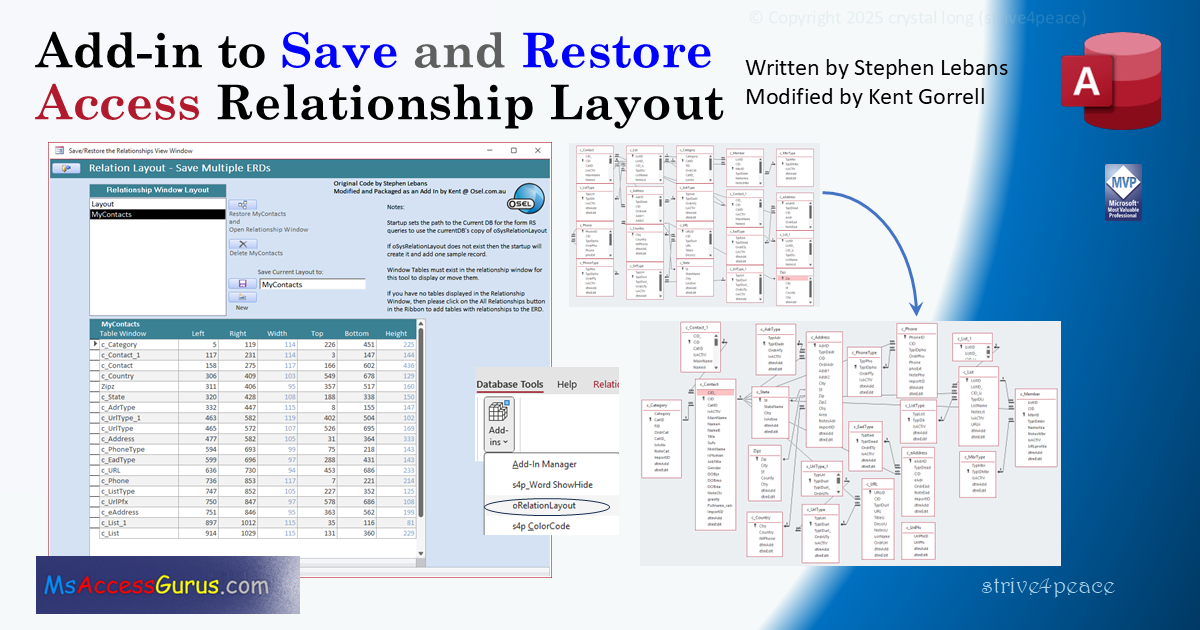
Notes
SAVE a relationship layout
When you have a good layout that you want to save,
in the Relationship window:
-
Position scrollbars so you see the left-most table and top-most table.
-
Use the add-in to save the layout with a name that you devise.
This makes records in the
oSysRelationLayout
table, which will be created in your CurrentDb
if it's not already there.
RESTORE — 3 lessons for this really awesome tool
-
Make sure
all tables to be adjusted (restored) are on the relationships diagram.
It cannot reorganize any tables not on the diagram already.
The tool will still work, but tables not there will be ignored.
-
unselect any table
in the relationships diagram before you Restore.
To do this, click on a "gray" area of diagram that isn't over another object so any yellow highlight around a table goes away.
This stops tables from going off the diagram where you can't see them
when you Restore.
If you forget to do this and tables go where you can't see them,
do this step and Restore again.
-
Assuming step 2 is complete,
the scroll bars
for the vertical and horizontal position (wherever they are at)
determine the top-left starting point
(move them appropriately when you Save and Restore).
Clear the Layout
of the Relationships Diagram
-
Select all tables, Ctrl-A
-
Press the DELete key on your keyboard
Show All Relationships
Lesson #1 is that all tables to be reorganized
must be on the digram.
What's the easiest way to do this?
-
Move scrollbars so the top-left of what you see
is where you want the added table windows to go
-
Right-click on canvas and choose
Show All Relationships
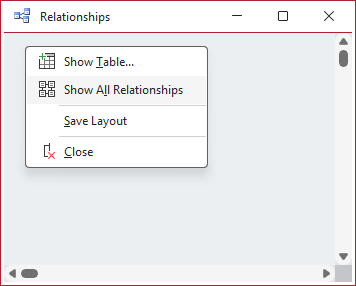
this puts a bunch of boxes with tables
on the diagram without any logical positioning.
-
If tables are already
on
the diagram, they aren't added again.
-
If you're doing this to Restore,
it doesn't matter if tables are on top of each other
— they just have to be there.
-
If your saved layout contains any tables or queries
without relationships,
add them manually if you want them to be positioned.
Restore relationships to another database
It's a good idea to occasionally make a blank database
with a good name
and import all objects into it.
Big problem is that you lose the Relationships diagram layout
— now you don't have to.
-
Save the good layout using the add-in in your working database.
New Database
-
Make a blank database
-
Import all the objects from your working database
(including the oSysRelationLayout table)
-
VBA: Add any needed references (Tools, References)
-
Compile
(,fix)
and save the VBA code.
Restore the layout (to another database)
Make sure you have (import) the
oSysRelationLayout
table
with the saved relationship layout(s) that you want to restore.
-
Open Relationships diagram (in your new database)
-
Position scrollbars if desired, and perhaps also
Clear the Layout? if you don't care to keep what's there,
if anything.
-
Show All Relationships to add every table with a relationship,
or manually add the tables that you want.
-
Position scrollbars to the top-left of where you want diagram to be restored.
Perhaps you want a little more space above and/or to the left?
-
Use the add-in to restore the layout with the name you saved.
Quick way to Restore a diagram with only some of the tables
If you don't want to drag tables to the diagram individually:
-
Clear the Layout unless you have something good
-
move scrollbars a couple screens left and/or down —
to some spot that won't interfere with the layout you will restore.
-
Show All Relationships
and maybe Restore full layout down and over there
Then
-
move scrollbars to upper left
unless you have a reason to put them somewhere else.
-
Use the add-in to Restore the layout with the name you saved.
-
Lasso and delete tables outside
(to the right and below?)
the relevant area
or just leave them there.
Deleting tables (Hide) from the relationships diagram only hides them from you seeing them.
The relationships aren't gone.
Scaling
New Feature August 2026: Scale Relation Layout to Restore
You spent lots of time laying out the relationships in a database,
and the diagram looks great on your computer.
Then you give that database to someone with one of those wide, wrap-around monitors
and the field lists look like a bunch of chicklets.
Now your colleage can choose to Scale a saved layout to Restore.
Conversely, if the diagram was made on a huge monitor,
you can tighten it up by reducing the Scale.
Scaling only affects the window sizes and positions,
not the text size.
The dimensions in the oSysRelationLayout table aren't changed unless you decide to overwrite them.
Or you can save a new layout with that scale once the layout is restored if you want to keep it.
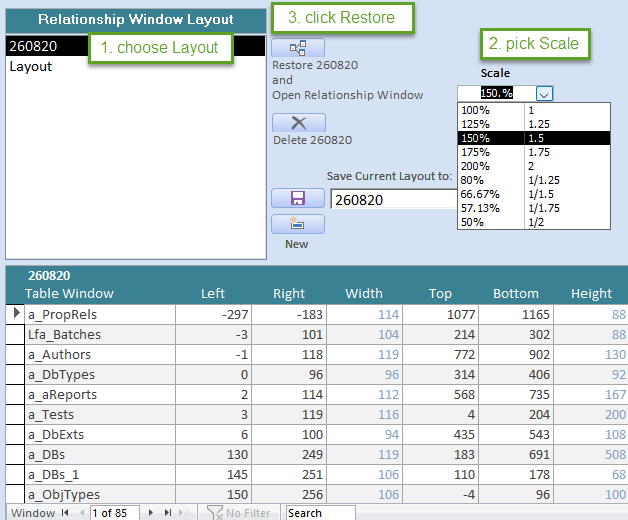
- Choose a layout
- Pick or enter desired Scale
- Click the Restore button

 and choose
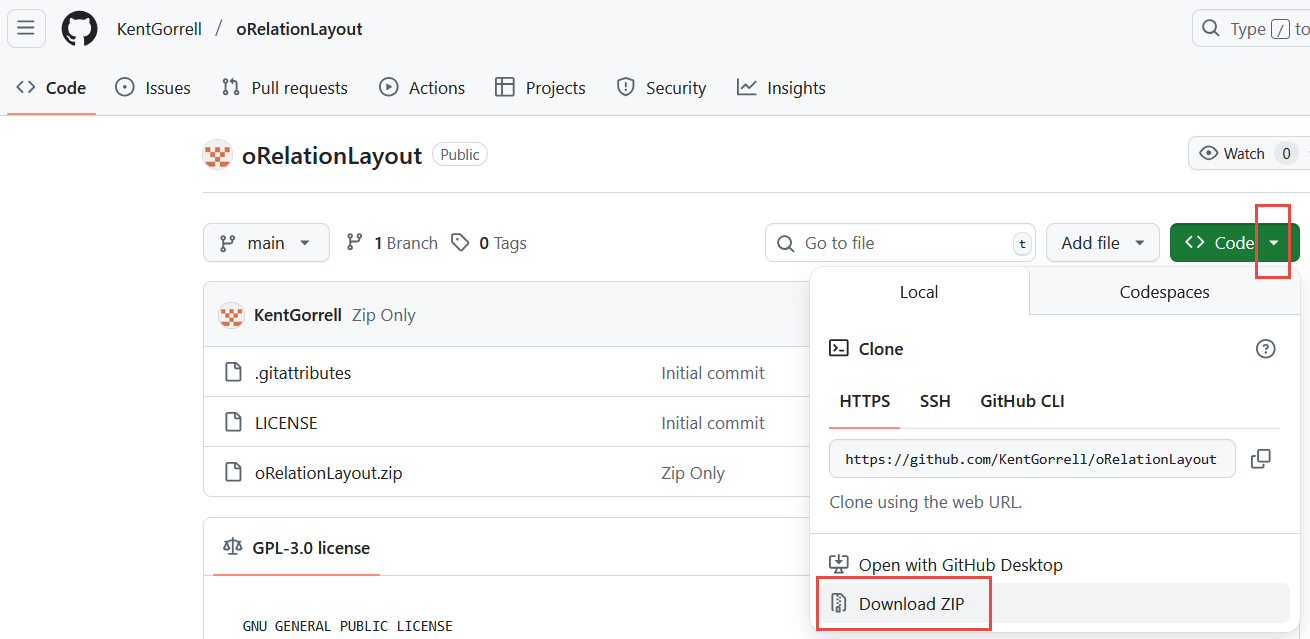
Download ZIP
and choose
Download ZIP